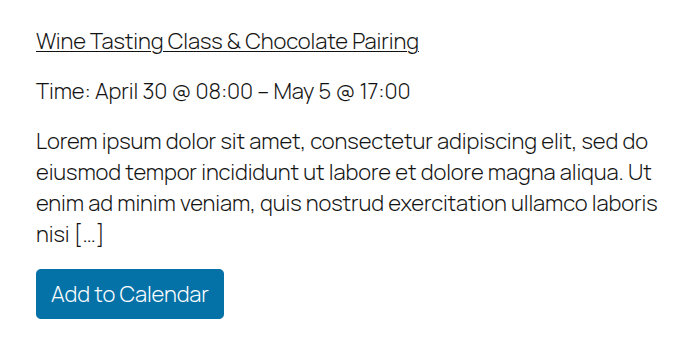
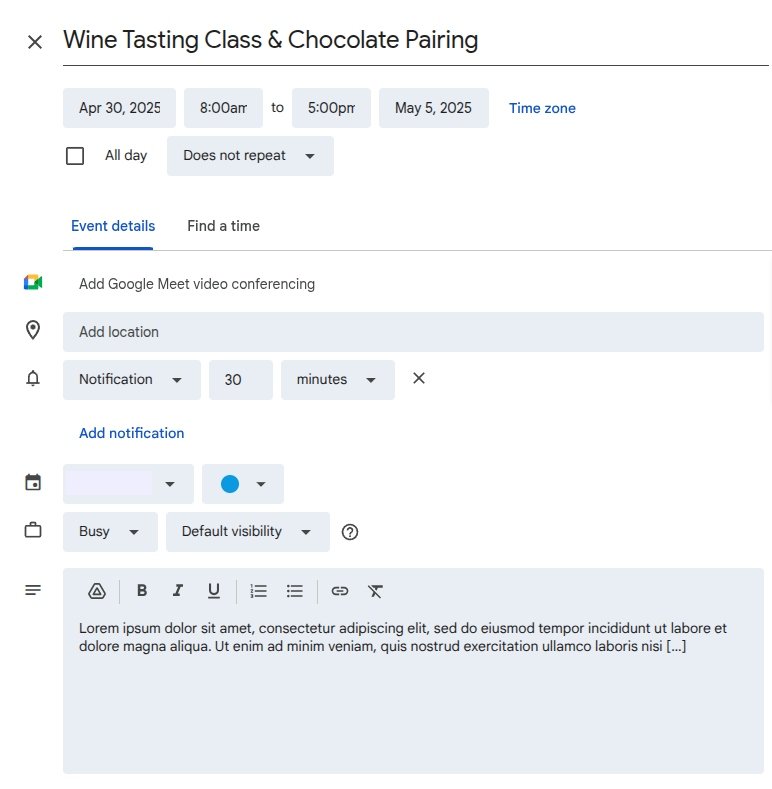
Want to display a compact event preview and include an “Add to Calendar” button? You can combine The Events Calendar’s built-in [tribe_event_inline] shortcode with a custom [add_to_calendar] shortcode that links the event to Google Calendar.
This is great for promoting upcoming events inside blog posts, sidebars, or landing pages.
What You’ll Need
- The Events Calendar and Events Calendar Pro plugins
- The
[tribe_event_inline]shortcode (built-in via Events Calendar Pro) - A custom shortcode for the “Add to Calendar” button (see below)
Step 1: Add the Custom Shortcode
Add this code to your theme’s functions.php file or using the Code Snippets plugin:
function custom_add_to_calendar_button($atts) {
    $atts = shortcode_atts(array(
        'post_id' => get_the_ID(),
    ), $atts, 'add_to_calendar');

    $event_id = intval($atts['post_id']);

    if (!$event_id || get_post_type($event_id) !== 'tribe_events') {
        return '';
    }

    $title = get_the_title($event_id);
    $start = tribe_get_start_date($event_id, false, 'Ymd\THis');
    $end = tribe_get_end_date($event_id, false, 'Ymd\THis');
    $location = tribe_get_venue($event_id);
    $description = get_the_excerpt($event_id);

    $google_calendar_url = "https://calendar.google.com/calendar/render?action=TEMPLATE" .
        "&text=" . urlencode($title) .
        "&dates=" . $start . "/" . $end .
        "&details=" . urlencode($description) .
        "&location=" . urlencode($location) .
        "&sf=true&output=xml";

    ob_start(); ?>
    <a href="<?php echo esc_url($google_calendar_url); ?>" target="_blank" class="add-to-calendar-button">
        Add to Calendar
    </a>
    <style>
        .add-to-calendar-button {
            display: inline-block;
            padding: 10px 15px;
            background-color: #0073aa;
            color: #fff;
            text-decoration: none;
            border-radius: 5px;
        }
    </style>
    <?php
    return ob_get_clean();
}
add_shortcode('add_to_calendar', 'custom_add_to_calendar_button');
Step 2: Use the Combined Shortcodes
You can now use [tribe_event_inline] to display a mini event preview, and insert the [add_to_calendar] button right below it like this:
[tribe_event_inline id="167"]

{thumbnail}

{title:linked}

Time: {start_date} @ {start_time} – {end_date} @ {end_time}

{excerpt}

[/tribe_event_inline]

[add_to_calendar post_id="167"]
Make sure to replace 167 with the actual post ID of your event.
Example Output: