
Ticket fees are an essential tool for handling processing costs and distributing payments to event organizers. You can configure ticket fees based on your preferences and decide whether to display them to ticket buyers.
Enabling Community Tickets
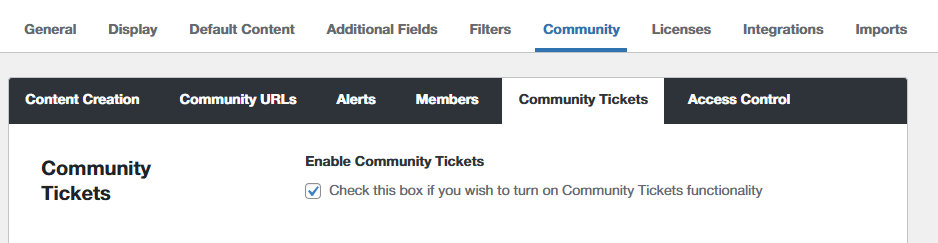
Before adjusting ticket fees, ensure that Community Tickets is enabled:
- Go to Events → Settings → Community → Community Tickets.
- Check the Enable Community Tickets option.
Adjusting Ticket Fees
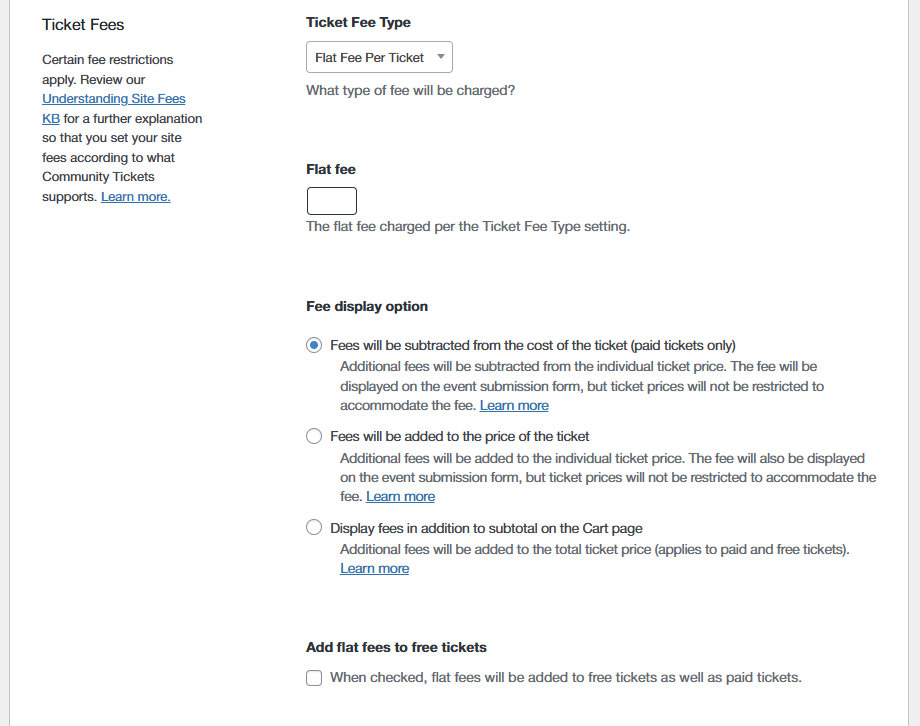
Once enabled, you can manage ticket fees by navigating to:
Events → Settings → Community → Community Tickets → Ticket Fees.
Ticket Fee types
Flat Fee
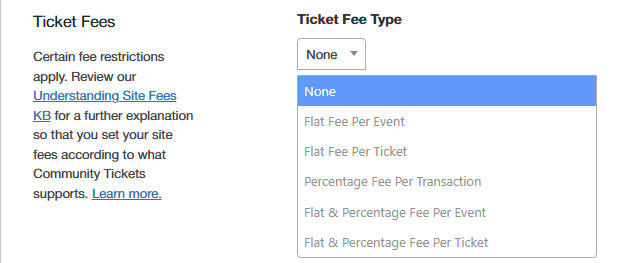
Define the flat fee collected by the site admin per event in an order (e.g. $2 per event in an order).
When any option that includes a Flat Fee is selected, the option to Add flat fees to free tickets will be displayed below.

Percentage Fee
Define the percentage of ticket sales money collected by the site admin (e.g. 10% of every ticket sold). You can charge a percentage fee per event, transaction, or ticket.
Fee Display Options
You can customize how fees are displayed to ticket buyers using the following options:
Subtract
Fees will be subtracted from the cost of the ticket (paid tickets only). Additional fees will be subtracted from the individual ticket price. The fee will be displayed on the event submission form, but ticket prices will not be restricted to accommodate the fee.
Where the flat fee is greater or equal to the value of the ticket(s) in the cart, the expectation for the event organizer payout should be $0. For example, if a ticket price is set as $1, and the flat fee is $1, the payout will be 0.
💡 Fees will not be subtracted from free tickets. Free tickets have nothing to subtract.
Add
Fees will be added to the price of the ticket. Additional fees will be added to the individual ticket price. The fee will also be displayed on the event submission form, but ticket prices will not be restricted to accommodate the fee.
💡 Flat fees will not accept a fee for free tickets. Free tickets cannot have a fee associated.
The following fee options will not work for the Add Fees to Ticket Price option: Flat Fee Per Event, Flat Fee + Percentage Fee Per Event; Percentage Per Transaction. Please use Subtract or Display fees.
Display
Display fees in addition to subtotal on the Cart page. Additional fees will be added to the total ticket price (and applies to paid and free tickets).

Coupons
Coupons are not functional or supported for payouts based on the PayPal Payments API at this time.
We hope this helps get your ticket fees set up. Head to our Help Desk if you still have a question, and we’d be happy to help!